Book a room
How to reserve a meeting or phone room in Selfdesk: picking a time, what it costs, changes, and recurring bookings.
Rooms are booked in 15-minute steps, with a minimum of fifteen minutes.
How to book
- Tap New booking, on the home screen or in the Book tab.
- Switch to the Room tab. At the top sits the room's card with its bookings across the day.
- Pick the date from the strip.
- Set From and Until. Quarter hours that are already taken can't be picked; above the selection you see how long you book and until when the room stays free.
- Tap Continue and confirm the booking.
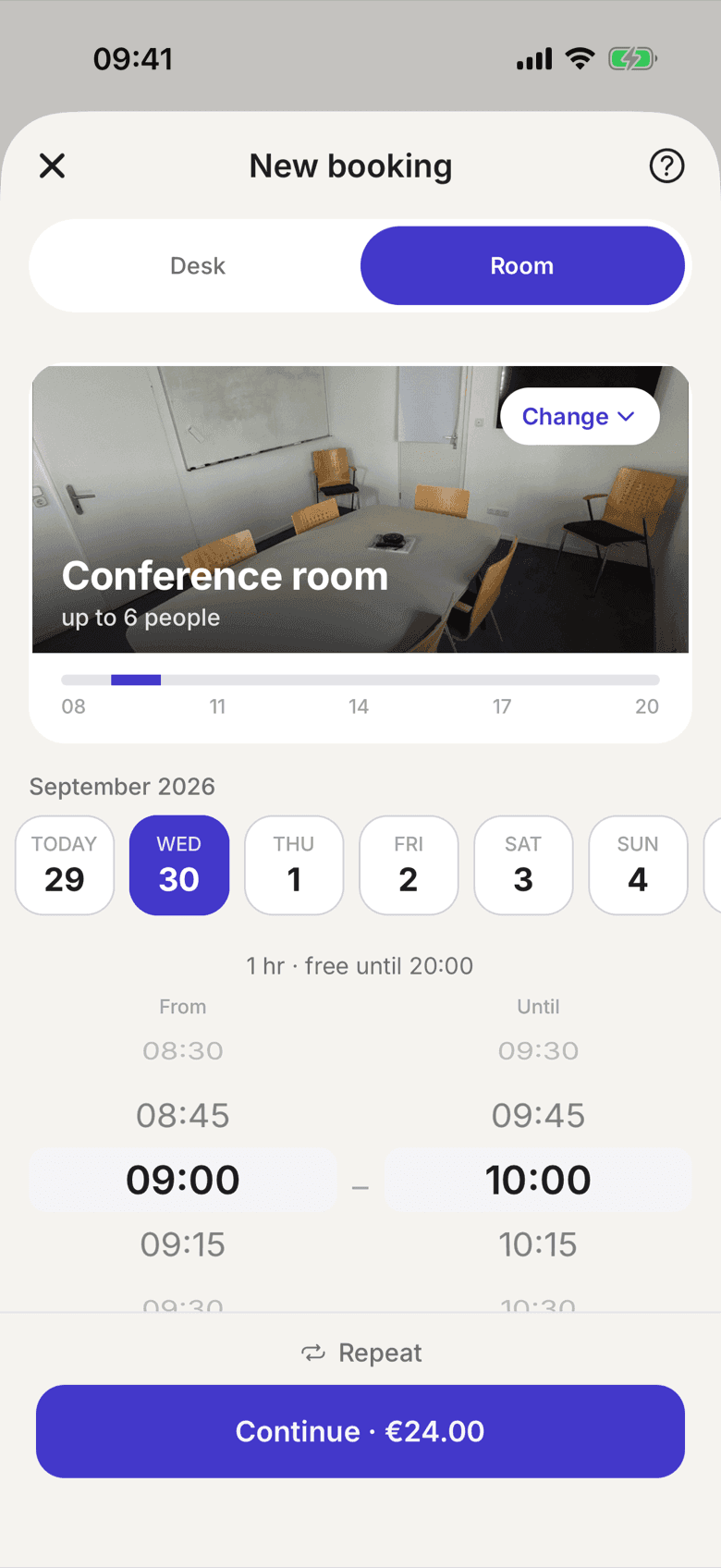
Change on the room card opens the list of all rooms with free/busy for the time you picked. Your time carries over.
You get a confirmation email with a calendar entry. There is no reminder shortly before the booking starts.
What rooms cost
Every room has its own price per hour. What you pay of it depends on your plan:
- Included with your plan: the room costs you nothing.
- Room price: you pay the room's price.
- Discount: your plan takes a share off the room price.
- Hours included: a number of hours per month is included, after that you pay the room price, with a discount if your plan has one.
Billing is in 15-minute steps.
The price sits in the continue button before you confirm: either "included" or the amount. Prices are gross, VAT included; if your space is a small business (§ 19 UStG), no VAT is shown.
Extras
If your space offers extras, such as drinks or a projector, you add them to the booking after booking: under My booking with Add extras. Extras cost everyone the same price; your plan does not change it. See Add extras to a booking.
Changing or cancelling a booking
- Change: tap the booking and choose Edit booking. Once the booking is running you can only move the end. The start is locked. If the new time costs more than before, the button shows the extra amount: Change and pay · €15.00. If it costs the same or less, it says Save changes.
- Cancel: only whole bookings are cancelled; to shorten one, use Edit booking. A cancelled room booking is not billed. Fixed extras whose lead time has been reached stay charged, and a booking with a fixed extra can no longer be moved.
Recurring bookings
If your space allows series, tap Repeat in the picker and set a rule, for example every week on the same day. Before you confirm, the app shows each occurrence as free, taken or closed; taken ones are skipped, never booked over. A series never reaches further than your space allows bookings; shortly before it ends you are offered the option to extend it.
If nothing is free
- Split your meeting into two shorter sessions.
- Book the day before or after.
- Ask your space admin. Some rooms may be held for special events.