Set up notifications
Two switches decide which emails you get. Mandatory emails are not affected.
You decide yourself which emails reach you, such as booking confirmations and invoices. All switches are on by default.
How to set them
- In your profile open Settings.
- Go to the Notifications section.
- Toggle the emails you do or do not want, such as Booking confirmation emails or Invoices by email.
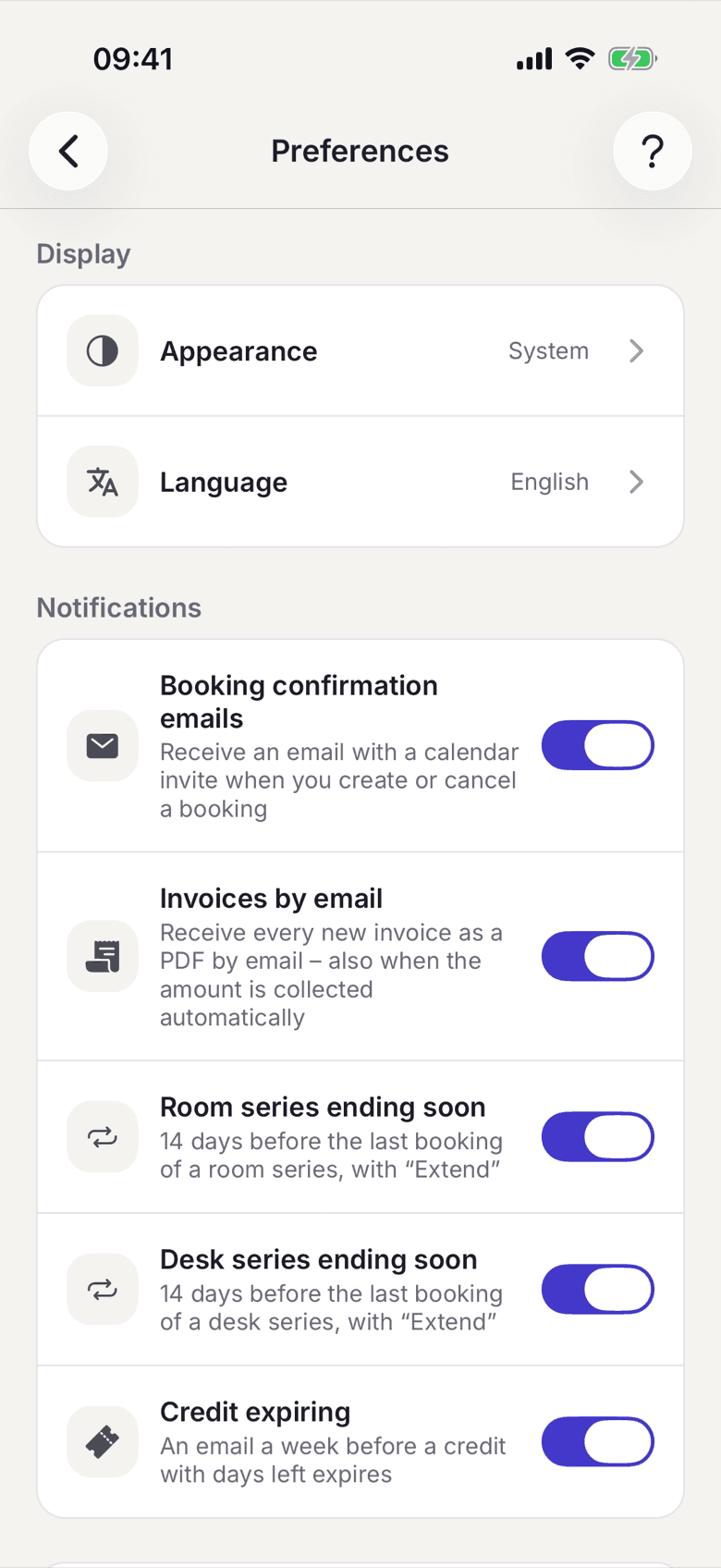
The change takes effect at once, there is no save button.
What the switches do
| Switch | What you get |
|---|---|
| Booking confirmation emails | an email with a calendar entry when you create or cancel a booking |
| Invoices by email | every new invoice as a PDF, also when the amount is collected automatically |
| Room series ending soon | an email 14 days before the last booking of a room series, with Extend |
| Desk series ending soon | an email 14 days before the last booking of a desk series, with Extend |
| Credit expiring | an email a week before a credit with days left expires |
What applies here
- The switches for series and credit only appear when your space offers those features.
- The setting belongs to one space. If you are in several, you set it in each one.
- Mandatory emails cannot be switched off. They include the failed collection, your contract documents and everything about your account.
- Switching off the invoice email costs you nothing legally. The invoice stays in the app and remains available there.
- If you entered a copy to your accountant, it keeps running independently of your own switch. See Send a copy to your accountant.
- If you also hold an admin role, a separate section Notifications as operator appears underneath.