Set, change or reset your password
A password is optional. You set it in settings after entering a code from an email.
You can always sign in with a code from an email. A password is a second way in that you can set in addition. It belongs to your account, not to a space, and is the same everywhere.
Set or change your password
- Open Settings in your profile.
- Under Security tap Set Password. If you already have one, the entry is called Change Password.
- Selfdesk sends you an email with the subject Your confirmation code for Selfdesk. Enter the code.
- Enter the new password under New password and Repeat password and tap Save.
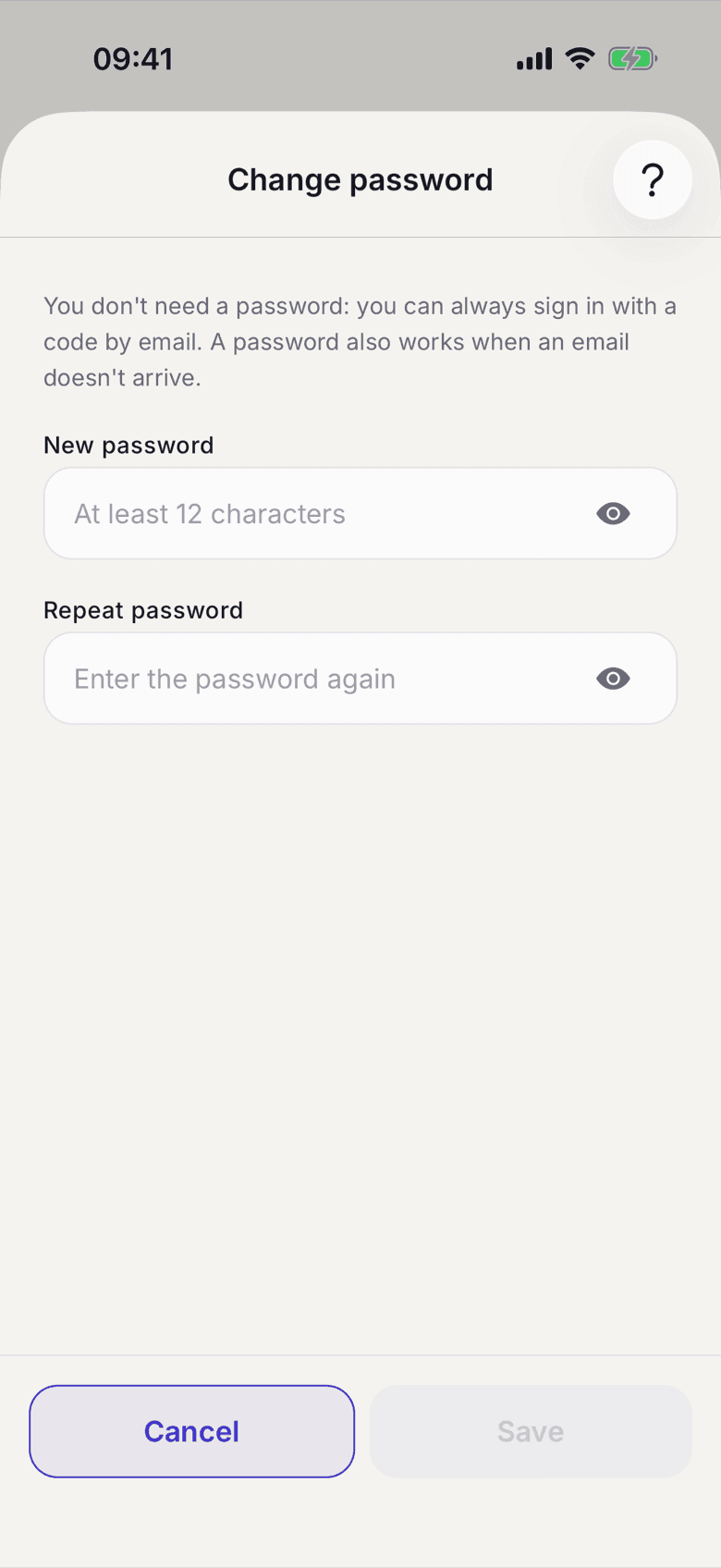
From then on you can sign in with Sign in with password on the sign-in screen. The path with the code stays available next to it.
Forgot your password
Sign in with a code from an email, as described in Create your account and sign in. Then set a new password as above. The old one stops working.
What applies here
- A password needs at least 12 characters.
- Selfdesk does not accept a password that appears in a list of stolen passwords. The check runs against the Have I Been Pwned service. Only the start of a checksum of the password goes there, never the password itself.
- The code before setting a password is valid for 10 minutes. It proves that the change comes from someone who can open your inbox. That is why Selfdesk does not ask for your previous password.
- If no email arrives, check your spam folder. See The email with the code does not arrive.