Connect Stripe
With a connected Stripe account you collect invoices automatically. You do not need Stripe to publish; money only moves after the review.
Stripe is the rail your members pay on. Your space gets its own Stripe account, and the payments land directly on it, not on an account of Selfdesk. Without Stripe the invoice stays a document your member transfers money against.
Have the details about your business ready. Stripe checks them itself; you do not enter them in Selfdesk.
In the app
- Open Payments in the management section.
- Tap Connect Stripe Account under Accept Payments.
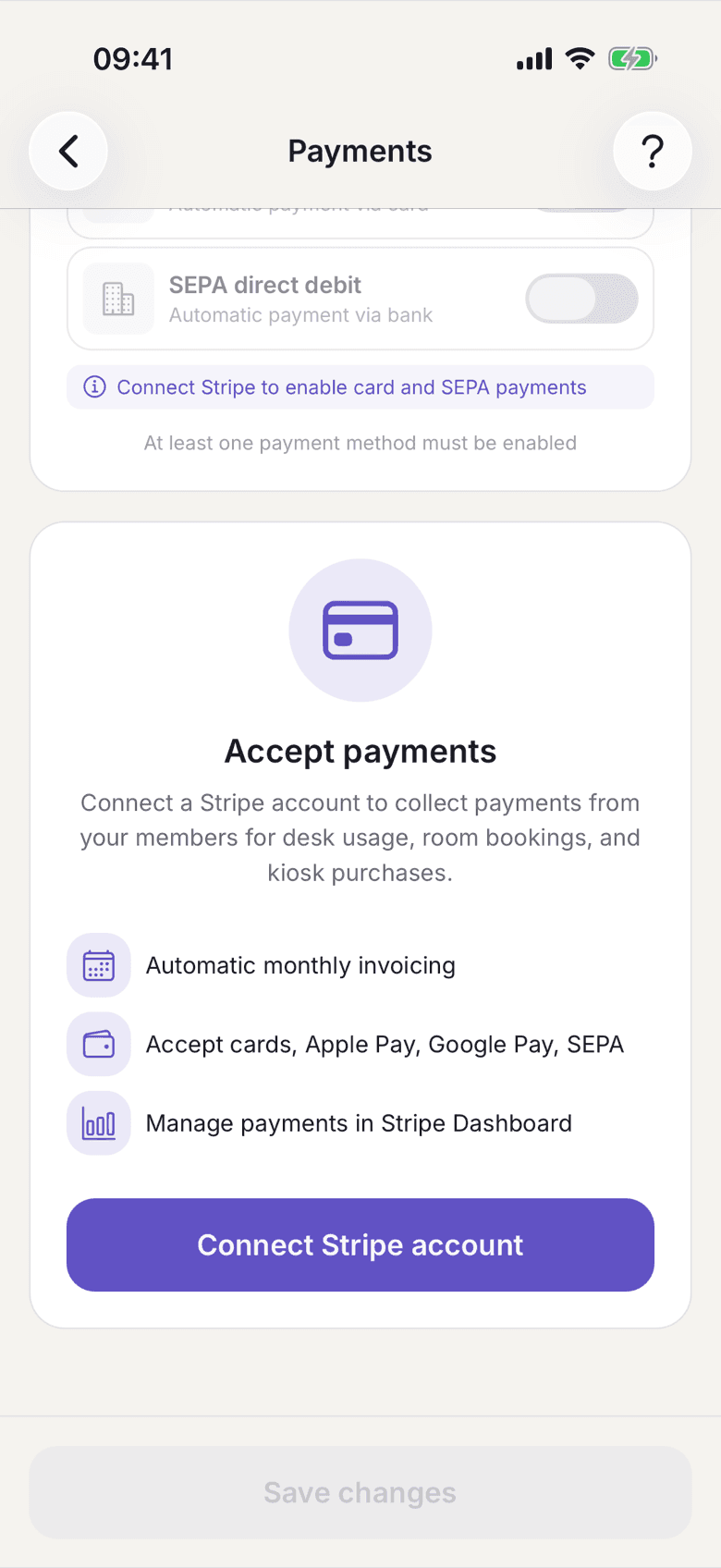
Payments with the Connect Stripe Account button - Fill in the form at Stripe and submit it.
- If you come back and details are still missing, it reads Complete Stripe Setup with the number of open items. Continue Setup takes you back to Stripe.
- Once everything is approved it reads Stripe Connected with Payments Enabled and Payouts Enabled set to Yes.
- Above it, under Payment methods, choose how your members may pay: Bank transfer, Card, SEPA direct debit.
On the web
- Open Payments in the settings. The page is called Member payments.
- Click Connect with Stripe.
- Fill in the form at Stripe and submit it.
- If details are missing afterwards, it reads Finish setup with the number of items remaining and Continue setup.
- Once everything is approved it reads Stripe is connected with Charging enabled and Payouts enabled.
- Under Payment methods, choose how your members may pay: Bank transfer, Card, SEPA direct debit.
What applies here
- The owner of the space connects Stripe. That step names the bank account the members' payments go to. Continuing the setup, opening the Stripe account and disconnecting are also the owner's alone. Admins see whether Stripe is connected and switch the payment methods.
- You do not need Stripe to publish. Setup lists it as the suggestion Accept card and direct debit until you have submitted the Stripe form. Collection only happens once Stripe has approved your account. Until then it reads No and nothing is charged.
- At least one payment method must be enabled. The switch of the last one cannot be turned off.
- Kiosk purchases need card or SEPA. The pay button on the open kiosk tab appears only when cards are enabled and Stripe has cleared your account for charging.
- The member's choice counts. If you also offer bank transfer and a member picked it, the month-end run skips collection for that member. See Switch to bank transfer.
- Stripe is only the rail. Number, PDF and content of the invoice come from Selfdesk. See Issued invoices are frozen.
- Disconnecting needs a code. Before Selfdesk removes the connection to Stripe, it sends a code to your address. See Confirmation code before certain actions.
When it does not work