Connect Nuki
Every space opens its doors through its own Nuki account. Until one is connected, every door unlock fails.
Your space opens doors through the Nuki account that owns its locks. You connect it either by signing in at Nuki or with a Web API token from Nuki Web. Selfdesk verifies a token with Nuki before saving it and keeps it encrypted.
Before you start: you need access to the Nuki Web account that owns this space's locks. A token from a different account cannot see your locks.
- Open Setup and tap Locks (Nuki) in the Connections section. The
screen is called Nuki smart locks.
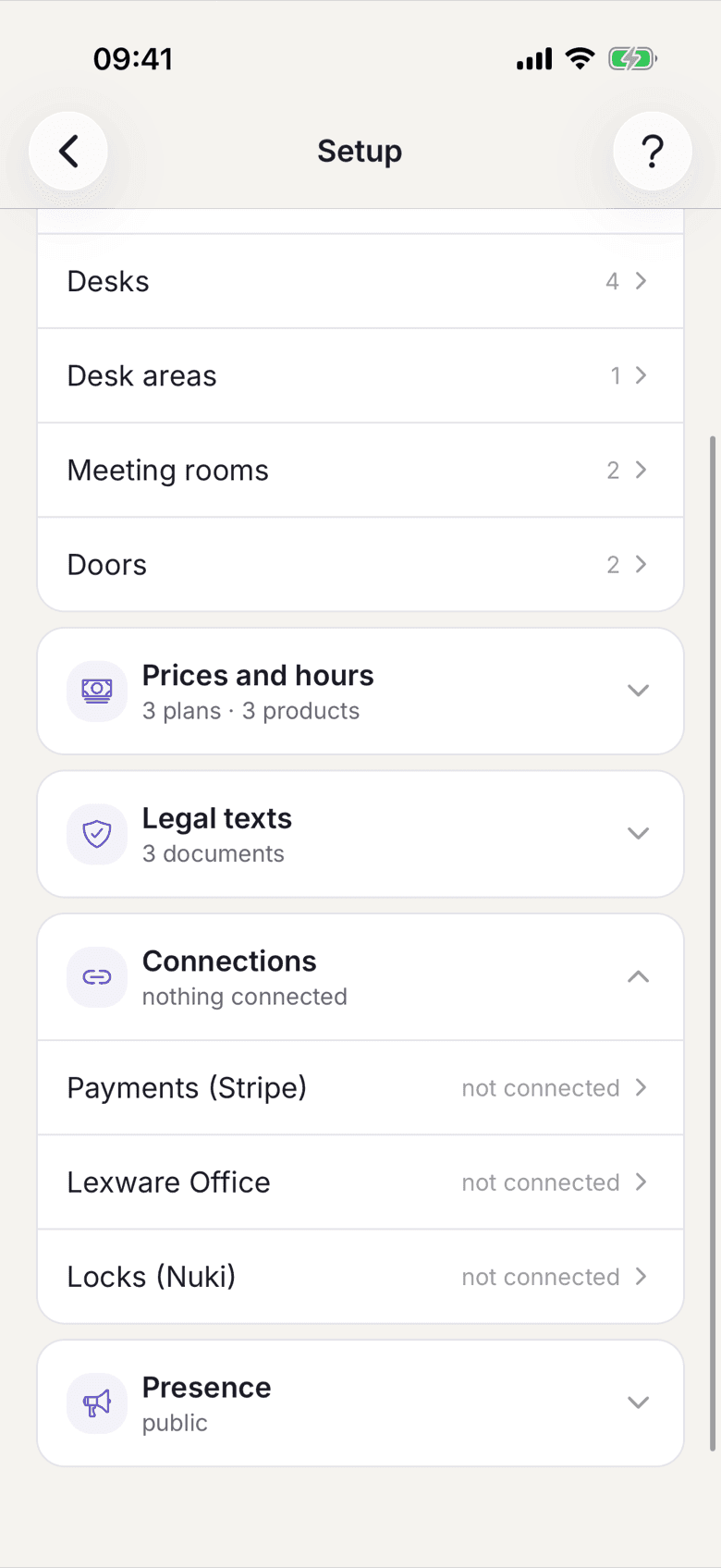
Setup with the Locks (Nuki) row in the Connections section - If the card Connect with Nuki is there, tap the button of the same name. You are sent to Nuki, sign in with the account that owns this space's locks, approve access there and come back. Nothing is connected at that point: Selfdesk names the Nuki account and its locks and asks whether you want to connect this account to your space. If it is the right account, tap Connect. Cancel connects nothing. Continue with step 5.
- Otherwise you connect with a token in the card Connect Nuki account. Open Nuki Web API settings takes you to Nuki Web. Sign in there with the account that owns the locks, open MENU > API and generate a Web API token.
- Paste it into the Nuki Web API token field and tap Connect.
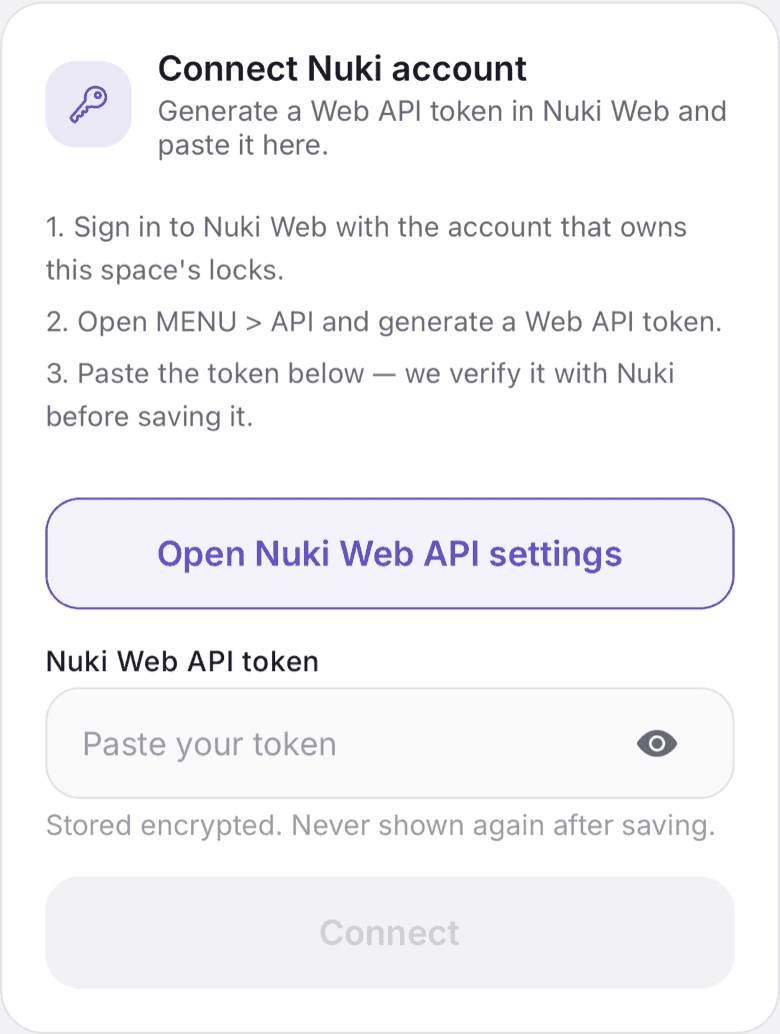
Connect Nuki account card with the Nuki Web API token field and the Connect button - Check under Available smart locks that this space's locks are listed. What
is missing here is also missing in the door form.
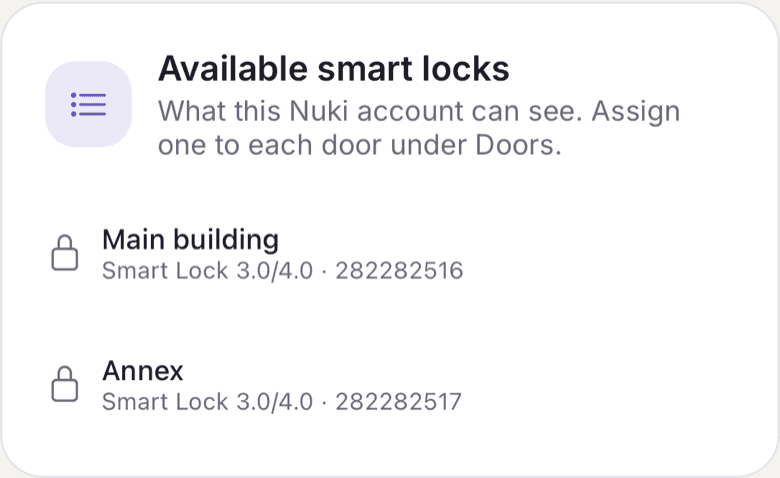
Available smart locks after connecting - Then assign one of those locks to each door, under Doors.
What applies here
- After returning from Nuki you have five minutes for Connect. Only the person who started connecting can confirm: in the same Selfdesk account and the same space. Otherwise nothing is connected, and Selfdesk says why. With Connect again you start over.
- The token is stored encrypted and is never shown again after saving. To change it, paste a new one under Replace API token.
- If Connection reads Reconnect needed, Nuki has rejected the access. No door will open until you store a new token.
- Disconnect removes the account only. The configured locks stay on the doors, and reconnecting the same account needs no further setup.
- Selfdesk never changes your lock's configuration. See Selfdesk never changes your lock configuration.
- A tip from the connection screen: also set a nightly locking schedule in the Nuki app. It is your safety net when the last person forgets.
When it does not work