Import members
You upload a list and then invite the people on it. Whoever accepts the invitation gets the prepared contract, whatever email address they use.
With the import you bring existing coworkers across without creating accounts for them. Every row waits until the person accepts their invitation. They then get their contract, their billing address, their phone number, the row's desk and its doors and can book.
The import itself sends no email. An invitation only goes out when you press Send invitation or Invite all.
- Open the member list and the import inside it. In the app the button sits in the header; on the web it is called Import.
- Use Download template. The file holds two more sheets: the valid plan names and the names of your doors.
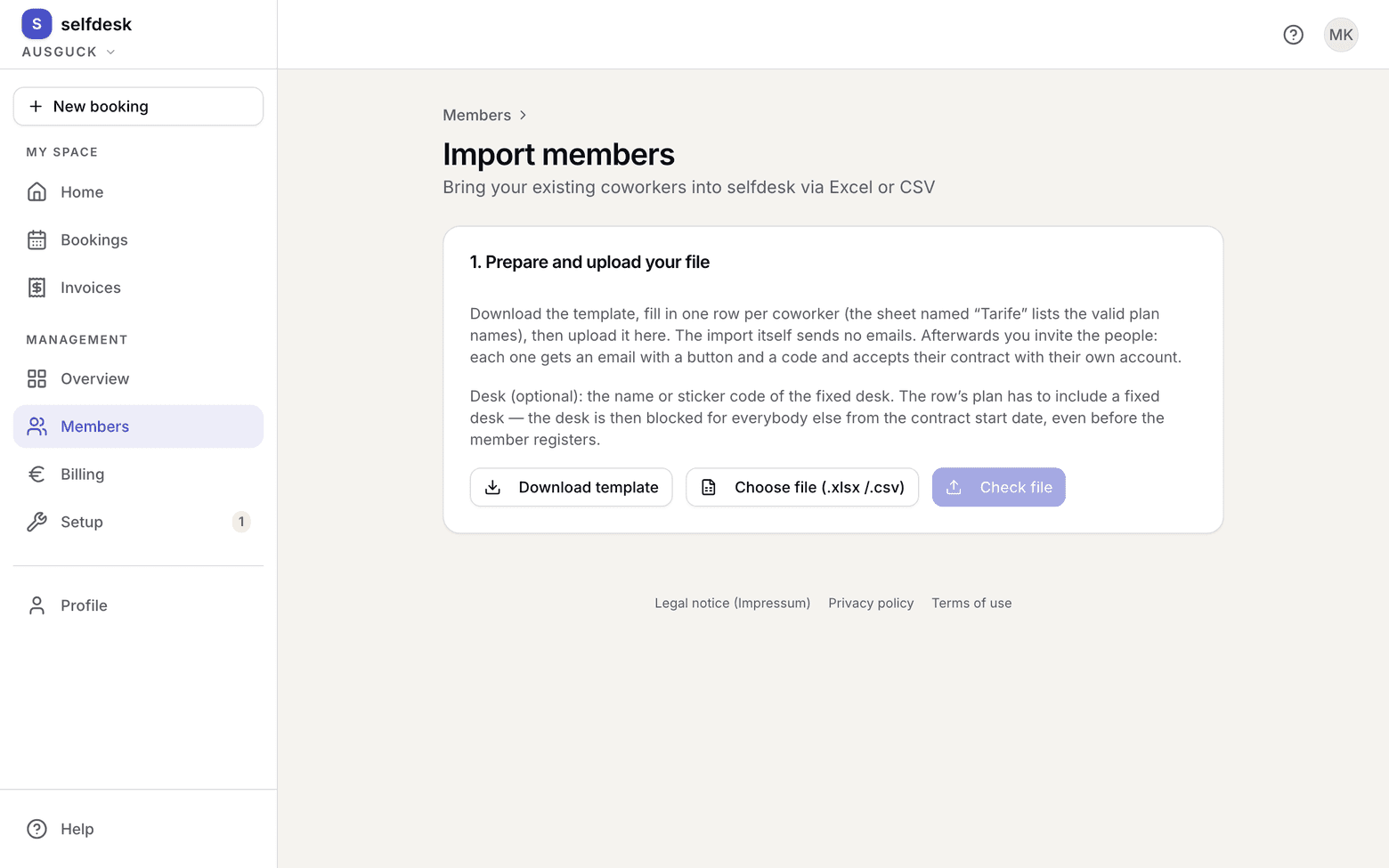
Import page with the button for downloading the template - Fill in one row per coworker: name, email, plan, contract start. The Desk column is optional and takes the name or the sticker code of a desk. The Doors column (headed „Türen“ in the template) is optional too:
allor the names of the doors, several separated by commas. - Pick the file with Choose file (.xlsx / .csv) and then Check file. You get a preview with a status per row.
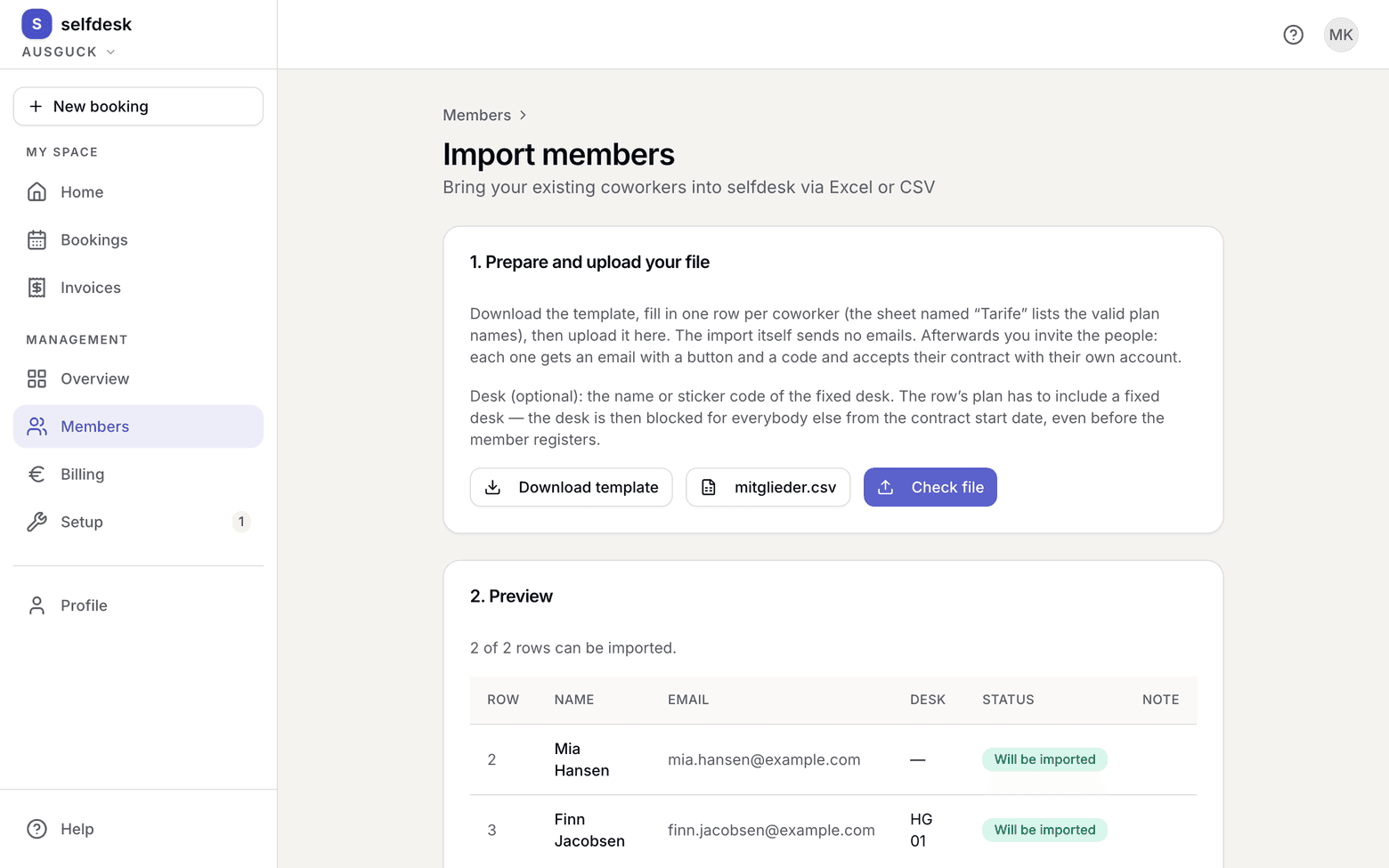
Import preview with a status per row - Fix faulty rows in your file and upload it again, or import only the valid rows for now.
- Confirm the import. The rows then sit in the Imported tab with the status Waiting for registration and the note Not invited.
- Invite the people: Invite all above the list emails every open row without a valid invitation. One by one it works from the row: Send invitation, or Copy link (web) / Share link (app) if you'd rather send the link yourself via WhatsApp.
What the invitation says
The email carries your space's name as sender, and replies go to your contact address. It holds an Accept invitation button and an eight-character code for the app. The button always opens the browser: the person signs in, checks their details from your list and agrees to the contract terms. Anyone who would rather start in the app enters the code there.
The invitation goes to the account it is accepted with, even if that account carries another address than your list, for example with Apple's "Hide My Email". The row then reads Accepted by with the name and the sign-in method.
What applies here
- An imported member is not a member yet. While the row is open there is no profile and no credentials, and it does not count in the Active list.
- A contract start in the past is taken as historical truth. Nothing is recalculated retroactively.
- If the row names a desk, that desk is blocked for everybody else from the contract start date, months before the person first signs in. The row's plan has to include a fixed desk.
- You can change the desk of an open row on its own, without uploading the whole list again.
- The person gets the doors from the row when they accept the invitation or you link the row to their account. They can open from the contract start.
allmeans the doors that exist at upload; a door added later is not included by itself. - A door name that does not exist in Selfdesk makes the row an error. An empty cell in the doors column takes the row's doors away; a file without that column leaves them as they are.
- You change the doors of an open row on the Imported tab: on the web through the Doors column or the row's menu (Set doors), in the app in the row's sheet.
- Link and code are valid for 30 days and only once. A new invitation does not cancel older ones. Once one expires the row reads Invitation expired, and Invite all sends a new one.
- Anyone who signs up without an invitation using the same email address gets the row, as before. If the row already has a valid invitation, this does not apply; the invitation counts.
- The member cannot move or withdraw the prepared contract themselves; the app asks them to let you know. You change it in the member's record, see Move or withdraw a contract before it begins.
- If somebody picked a plan themselves that has not begun yet, the prepared one replaces it, and the row shows a note. If their own contract is already running, it stays, and the row becomes Signed up separately.
- If somebody already signed up with another address, link the row to that account with Link to an account. Only accounts that know your space and hold no running contract here are offered.
- A row you revoke becomes Revoked. Its invitations stop working.
- Imported contracts need no approval. Your upload is the approval.
- Everybody has to accept the legal texts themselves. With an invitation that happens when accepting it, after Link to an account on first entry.
When it does not work